The Computer Mouse Trap: Why Your Arm Complains
That familiar ache after using a computer may be a reason to examine how you work, not proof that your mouse has permanently damaged your arm.
Small Working Habits Can Create Big Discomfort
Discover why the position of the mouse, the length of a task and the way you change activity all deserve attention.
Start With A Comfortable Workstation Check
One useful observation can help you find a more manageable way to work without forcing your body into a supposedly perfect posture.
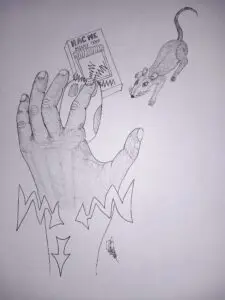 George was enjoying retirement when he discovered an unexpected source of frustration. He had spent decades working with tools, climbing into difficult spaces and solving heating problems in other people’s homes. Now he was sitting at a computer, organising photographs and researching a family project. The work was interesting, yet by late afternoon his right forearm sometimes ached and his shoulder felt tired. His immediate reaction was to blame the mouse. After all, that was the object he had been holding throughout the afternoon. But the computer mouse trap was more complicated than a single piece of equipment. The way he positioned his arm, how long he concentrated without changing tasks and whether he was comfortable at the desk all deserved a closer look.
The phrase repetitive strain injury, often shortened to RSI, describes pain associated with repeated use of a body part. It is not one precise diagnosis. Symptoms can affect the shoulder, elbow, forearm, wrist, hand or fingers and may include aching, stiffness, weakness, tingling or numbness. The symptoms do not prove a particular cause, because several conditions can produce similar experiences.
George therefore has no reason to decide that his wrist is permanently injured just because it feels uncomfortable after computer work. Equally, he shouldn’t ignore symptoms that keep returning, persist or worsen. Understanding the computer mouse trap begins with separating an observation from an assumption about what it means.
The Computer Mouse Trap Is Bigger Than One Mouse
Look At Reach, Grip And Time
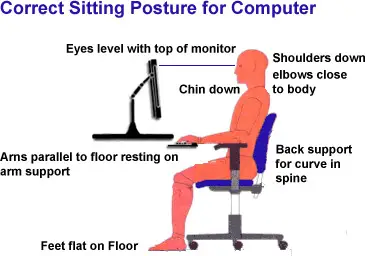
George had placed his mouse beyond a pile of papers to the right of his keyboard. Whenever he needed to click, his hand travelled further from his body than was comfortable. He also tended to grip the mouse firmly, particularly when concentrating on a fiddly job. Neither habit was obvious while he was absorbed in the screen. The following morning, he noticed how far he was reaching and moved the papers so the mouse could sit nearer the keyboard. He let his forearm rest comfortably rather than keeping the arm stretched out. These were straightforward changes to the working arrangement, not a claim that one magic position would cure his symptoms.
The Health and Safety Executive recommends keeping a mouse within easy reach, supporting the forearm where appropriate, avoiding a tight grip and using a reasonably straight wrist. These guidelines are intended to help people find more comfortable ways to work. They are not instructions to hold the body rigidly. People differ in height, chair design, eyesight, hand size and the tasks they perform. A desk arrangement suitable for one person may need adjusting for another. The most useful test is whether the equipment allows comfortable working without unnecessary reaching or sustained effort. George had once spent years selecting the right tool for a plumbing job; he can apply the same practical attitude to his computer.
Time matters too. George could move the mouse closer and still spend an unbroken afternoon in one position. His family-history project encouraged long spells of concentration, so he sometimes ignored the clock until he was stiff or tired. Changing tasks regularly can reduce the time spent repeatedly using the same muscles. A short pause to fetch a drink, check a paper document or do another ordinary activity may provide a natural change. The HSE favours short, frequent breaks or changes of activity over very long uninterrupted sessions. There isn’t a single legally prescribed break interval for every computer user, and a timer alone cannot determine what will suit an individual.
Why Mouse Pain Needs A Better Question
Notice Symptoms Without Guessing The Diagnosis
Imagine that George feels pins and needles in his hand while using the mouse. It would be tempting to assume that all such sensations are RSI and begin searching online for stretches. Yet tingling, numbness, pain and weakness can have different causes, including conditions that need clinical assessment. A blog cannot determine which one is responsible. The sensible response is to note what happens, how often it occurs and whether it is getting worse. If symptoms are persistent or worsening, George should speak to his GP or another appropriate healthcare professional. He should not force painful stretches or continue a demanding activity merely to prove that he can tolerate it.
Keeping appropriately active is generally preferable to prolonged complete rest, although a painful task may need temporarily reducing or adapting. The NHS advises people with RSI symptoms to limit aggravating activity initially if necessary, then increase activity gradually as appropriate. A pharmacist can advise about suitable pain relief, while physiotherapy or occupational therapy may help when symptoms are not improving. Which treatment is appropriate depends on the actual problem. George’s friend might recommend an expensive vertical mouse, wrist brace or exercise gadget, but buying a product before examining the working situation and symptoms could be wasted money. An accessory may be useful for some individuals; it isn’t automatically a cure for everyone.
Dennis Bartram’s wider movement approach offers a useful editorial lesson here. The arm doesn’t work in isolation. Reaching to the side involves the shoulder and trunk as well as the wrist and fingers. Sitting for a prolonged period changes the demands on the whole body. That doesn’t mean every wrist symptom starts in the back, nor can an observer diagnose nerve problems from posture alone. It simply means that comfortable movement often depends on the arrangement of several parts working together. Looking beyond the painful spot can help somebody ask better questions about their activities while leaving diagnosis and treatment to qualified clinicians when needed.
Watch The Existing Computer Mouse Trap Video
Use The Video As Background, Not A Diagnosis
This is the video originally embedded in the article. Watch it for general discussion, then return to the reader activity below. If an exercise or technique shown is unsuitable for you, don’t attempt it without professional guidance.
The Computer Mouse Trap: A Practical Three-Step Check
Observe, Adjust And Review
Step one – Observe. During an ordinary computer task, notice whether the mouse is within easy reach. Is your arm stretched unnecessarily? Are you gripping the mouse more tightly than needed? How long have you been working without a change of activity? These observations are about the setup, not about diagnosing a medical condition. There is no need to deliberately provoke pain or test how long you can endure discomfort.
Step two – Adjust. If it is practical and comfortable, bring the mouse nearer, clear enough room for your hands and forearms, and vary your tasks rather than staying in exactly the same working pattern for hours. Choose a chair and screen arrangement that suits your body and the activity. An expensive replacement mouse is not necessarily the first solution. In a workplace, employees who regularly use display screen equipment may be entitled to an appropriate workstation assessment under the applicable regulations.
Step three – Review. Notice whether the arrangement is more manageable, but do not regard a temporary improvement as proof that you’ve identified a medical cause. If pain, tingling, numbness or weakness persists or worsens, seek an appropriate assessment. Sudden severe symptoms or a significant new loss of function may require urgent medical advice rather than another workstation adjustment. The aim is comfortable participation, not a personal experiment in pain tolerance.
Keep Computer Work Comfortable And Human
A Better Routine Is More Valuable Than A Perfect Pose
Open to See This Video, And This Is What’s Already Built, Trained & Waiting For Your First Command.
George’s discovery was simple: his computer should serve the life he wants to lead, not leave him feeling obliged to sit motionless until every task is finished. He can arrange his work so that the mouse is easy to reach, his arms are comfortable and his afternoon includes opportunities to change activity. He can also take recurring symptoms seriously without assuming the worst. That is a sensible approach to movement at any age. The original computer mouse trap isn’t that every click causes an injury. It is the habit of overlooking how a familiar task is arranged until discomfort demands attention.
Today’s Reader Task: Take one minute to look at your normal computer arrangement. Identify one avoidable reach, one source of unnecessary grip or one long stretch of uninterrupted mouse work. Choose a practical, comfortable adjustment and observe whether it makes the task easier. This is a workstation check, not a treatment program.
Riley’s Wisdom Drop: “The smartest computer setup doesn’t force your body to behave. It makes everyday work easier to manage.”For additional information, see the NHS guide to repetitive strain injury and the Health and Safety Executive’s display screen equipment guidance. You can also explore Dennis Bartram resources.